
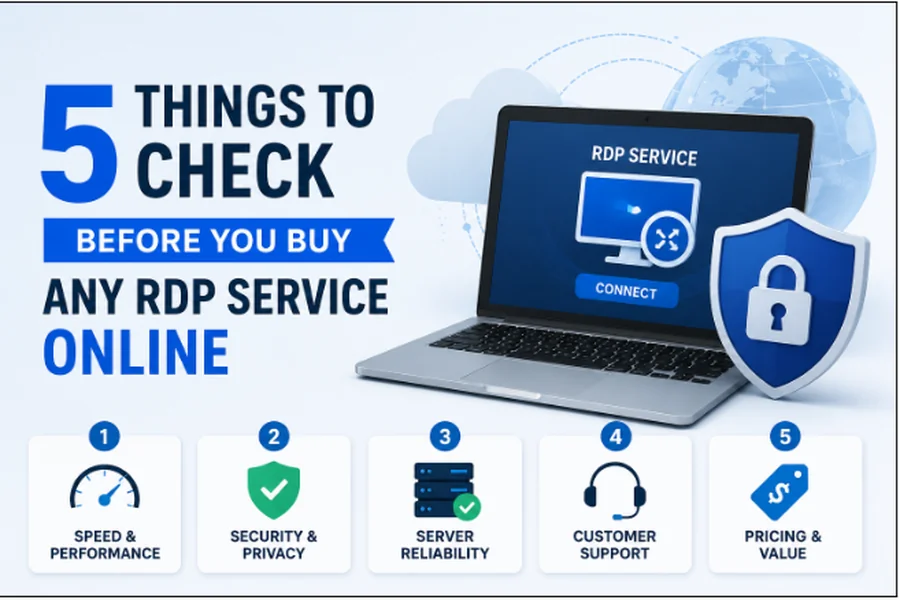
You buy an RDP plan, set it up in 20 minutes, and it works fine for the first few days. Then the lag starts. Or the connection drops at the worst possible moment. Or you try to get help and discover the support team responds in 48 hours. By that point you’re locked into a billing cycle and starting the search all over again.
This happens because buying an RDP service feels simple until it isn’t. Every provider looks credible online. The plans sound similar. The prices vary but nothing on the surface explains why. Without knowing what to actually check before purchasing, you’re making a guess dressed up as a decision.
Here are the five things that separate a reliable RDP service from one that will cost you more than it saves.
Where the server is located relative to where you work
This is the check most buyers skip entirely, and it’s the one that affects your experience every single time you connect.
Remote desktop performance is governed by latency, which is the round-trip time between your device and the server. The further the server is from your location, the higher the latency, and the more input lag you feel during every session. A click takes longer to register. Typing feels slightly delayed. Scrolling stutters. None of this is caused by your internet speed. It’s caused by physical distance.
Before purchasing, find out exactly which data center region the provider uses. Not the country. The city and ideally the data center facility. Then run a ping test to that location. On Windows, open Command Prompt and type ping followed by the server’s IP address or hostname. On Mac, use the Network Utility or Terminal. You’re looking for a result under 30 milliseconds for smooth everyday use. Under 10 milliseconds for latency-sensitive work like trading or real-time automation.
If a provider won’t tell you the specific server location before you pay, that’s your answer. Move on. For US-based operations specifically, the decision to buy RDP USA from a provider with verified domestic data center locations cuts the latency problem at the source – rather than trying to work around it after the fact with optimization tricks that don’t solve geographic distance.
Whether the resources are dedicated or shared
Every RDP plan lists RAM and CPU specs. What those specs don’t tell you is whether those resources are genuinely yours or whether you’re competing for them with other users on the same physical machine.
Shared environments divide hardware resources across multiple accounts. This keeps costs low for the provider and looks attractive on a pricing page. The problem appears during peak hours when multiple accounts on the same machine are running heavy workloads simultaneously. Your allocated 4GB of RAM and two CPU cores suddenly feel like far less because the underlying hardware is under pressure from everyone on it at once.
Dedicated resources mean your allocation is reserved for you. Your CPU performance doesn’t change based on what your neighbors on the server are doing. For light use like basic file access or occasional browsing, shared is often acceptable. For automation, trading, development, or anything running continuously, shared resources introduce unpredictability that compounds over time.
Ask the provider directly before purchasing: are the CPU resources dedicated or shared on this plan? If the answer is vague or redirects you to a features page, assume shared and price accordingly. If you need full administrative control over your environment, confirm this when you buy cheap admin RDP – the plan should explicitly state dedicated CPU allocation, not just a RAM figure sitting on an oversold shared machine.
What the security configuration actually includes
RDP endpoints are actively targeted by automated attacks around the clock. Default configurations, predictable ports, and single-factor authentication are what make those attacks succeed. A provider that doesn’t give you control over your security configuration is asking you to trust their defaults, and their defaults are almost never set up with your specific risk profile in mind.
Before buying, check for four specific things.
Multi-factor authentication availability. A compromised password should not be enough to access your environment. If MFA is not available or is an optional paid add-on, that tells you how the provider thinks about security.
IP whitelisting capability. The ability to restrict access so that only your specific IP addresses can connect eliminates the overwhelming majority of automated brute force attempts before they reach the login screen.
Encrypted connection protocols. Ask which protocol versions are supported and which are disabled. Outdated encryption standards have documented vulnerabilities. A provider running legacy protocols without explanation is a risk.
Port configuration control. Automated scanners target RDP on the default port 3389. The ability to change this is a basic hardening step. If the provider locks you to default port settings, your environment is permanently more visible to automated scanning.
If a provider offers all four of these controls, your security is in your hands. If they don’t, your security is in theirs. The assumption that security features disappear when you buy cheap RDP online is not always true. The right providers include MFA and IP whitelisting as standard. The wrong ones treat them as premium add-ons regardless of what you pay.
What the uptime guarantee actually covers
Every provider advertises uptime. Almost none of them explain what their uptime number actually means in practice, and the difference matters significantly when your work depends on continuous access.
99.9% uptime allows 8.7 hours of downtime per year. That sounds acceptable until you realize the provider gets to define what counts as downtime. Scheduled maintenance is excluded by most providers. Partial degradation where the server is technically online but running at reduced performance often doesn’t count either. And when downtime does occur, the typical compensation is a billing credit, meaning you get a discount on next month’s invoice while your session was unavailable during peak hours.
Read the SLA document before purchasing. Specifically look for three things. How downtime is defined. Whether scheduled maintenance counts. And what the compensation process looks like when uptime commitments are breached.
Then verify independently. Sign up for a free account on UptimeRobot or a similar third-party monitoring service after you subscribe. Point it at your RDP server. This gives you your own uptime record that exists outside the provider’s reporting. If your data and their data diverge significantly, you have documentation for a support or refund conversation.
How fast and capable the support team actually is
Support quality is invisible until you need it urgently. A dropped session during a client presentation, a security alert you don’t recognize, a performance problem that appears without explanation. These moments happen. The question is whether your provider resolves them in minutes or in days.
Three things to check before purchasing.
Support hours. Not all providers offer 24/7 support even on paid plans. If your work runs outside standard business hours or spans time zones, confirm explicitly that support is available when you need it. Don’t assume.
Response time commitments. There is a meaningful difference between a provider that commits to a one-hour response time in their SLA and one that says they aim to respond as quickly as possible. One is a commitment. The other is a hope.
Support channel quality. Email ticketing is slower than live chat. Live chat is slower than phone. For production workloads where downtime has a real cost, know which channels are available on your plan before you need them.
Here is the most useful test you can run before purchasing: send the support team a specific technical question before you buy. Not a sales question. Something like asking how to configure IP whitelisting, or what encryption protocols are enabled by default. Measure how long the response takes and how accurate and detailed it is. That interaction is a preview of every future support experience you’ll have with that provider.
The thing most buyers get wrong
They evaluate RDP services when conditions are perfect. Everything works during setup, the trial period goes smoothly, they confirm it connects and move on. The real gaps show up under pressure: during peak usage hours, during a connection drop, during a security incident, during the moment they actually need help.
Evaluate the service the way you’ll use it, not the way it behaves when nothing is going wrong. Run your real workload during the trial. Test reconnection after deliberately dropping the session. Contact support with a real question before you commit. These three tests take less than two hours and they eliminate most of the risk from the decision.
What to do right now
Before you purchase any RDP plan, open a conversation with the provider’s support team and ask two questions: what is the exact data center location of the server for the plan you’re considering, and are the CPU resources on that plan dedicated or shared.
The speed and accuracy of those two answers will tell you more about whether the provider is right for your needs than any feature list or pricing comparison will.
FAQs
Q1. What is the biggest mistake people make when buying RDP online? Choosing based on price without checking server location. Latency caused by distance is the most common reason RDP sessions feel slow, and no amount of bandwidth fixes it.
Q2. How do I test RDP speed before purchasing? Run a ping test to the provider’s server location before buying. Under 30ms is acceptable for general use. Under 10ms is the target for latency-sensitive workloads like trading or automation.
Q3. Is shared RDP acceptable for business use? For light, occasional tasks it can work. For continuous workloads, automation, or anything where consistent performance matters, dedicated resources are worth the difference in cost.
Q4. What security settings should every RDP environment have? Multi-factor authentication, IP whitelisting, current encryption protocols, and a non-default port configuration. These four settings together remove the majority of common RDP attack vectors.
Q5. How do I know if a provider’s uptime guarantee is genuine? Read the SLA to see how downtime is defined and whether scheduled maintenance is excluded. Then verify independently using a third-party uptime monitoring tool after subscribing.

David Lee is a seasoned writer specializing in filming locations. With a keen eye for detail and a passion for cinema, David explores the stories behind iconic sites and shares unique insights that bring your favorite films and series to life.